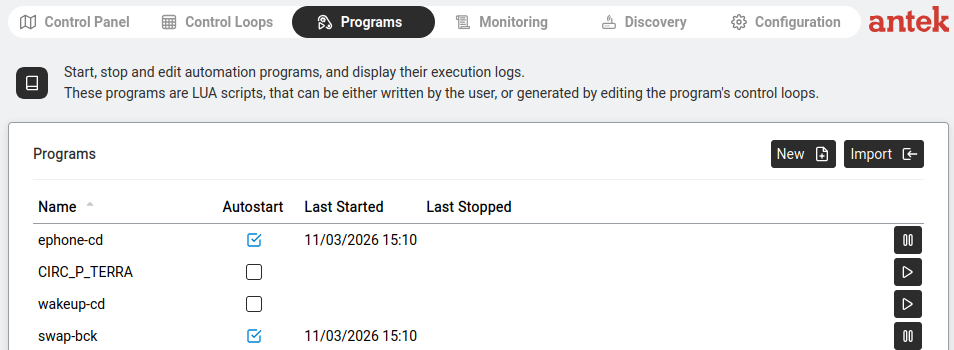
Navigate to Automation > Programs. This tab shows all automation scripts running on the Abilis. Programs are written in Lua. They can be written manually or generated automatically from Control Loops.
Each program in the list shows:
| Column | What It Means |
|---|---|
| Name | The program's name — descriptive names help identify what each program does (e.g. "Hallway_lights_schedule", "Heating_control_loop_1"). |
| Autostart | Checkbox — if ticked, this program starts automatically when the Abilis boots up or restarts. Essential for programs that should always be running (heating schedules, security routines). |
| Last Started | Date and time when the program was last started. Useful for checking if a program is still running after a reboot. Note: this is just the most recent timestamp — the page doesn't keep a full run history. For longer-term audit trails, configure SYSLOG forwarding. |
| Last Stopped | Date and time when the program was last stopped (either manually or due to an error). Same single-timestamp limitation as Last Started. |
| ▶ / ⏸ button | Click ▶ to start the program, ⏸ to stop it. The icon shows the current state: ▶ means the program is stopped (click to start), ⏸ means it's running (click to stop). |
Click New to create a blank program — you'll get a code editor where
you write Lua.
Click Import to upload a .lua file from your computer. The
Abilis-specific functions for talking to automation devices, DISA services, and the CLI
are documented in the
v9.0 reference manual ch58.4 — Lua Abilis extensions.
To see what a running program is logging, click the Output button on its
row — this opens a console showing the program's print() output,
progress messages, and any runtime errors.
Programs created by the Control Loops tab appear here automatically. They have auto-generated names and can be started/stopped just like manually written programs. You can even open and edit the generated Lua code if you need to customise the behaviour beyond what Control Loops can express visually.